Is Your Store Locator EAA-Compliant? A Checklist for Multi-Location Brands
- Multi-Location
- How-to Guides
Quick take
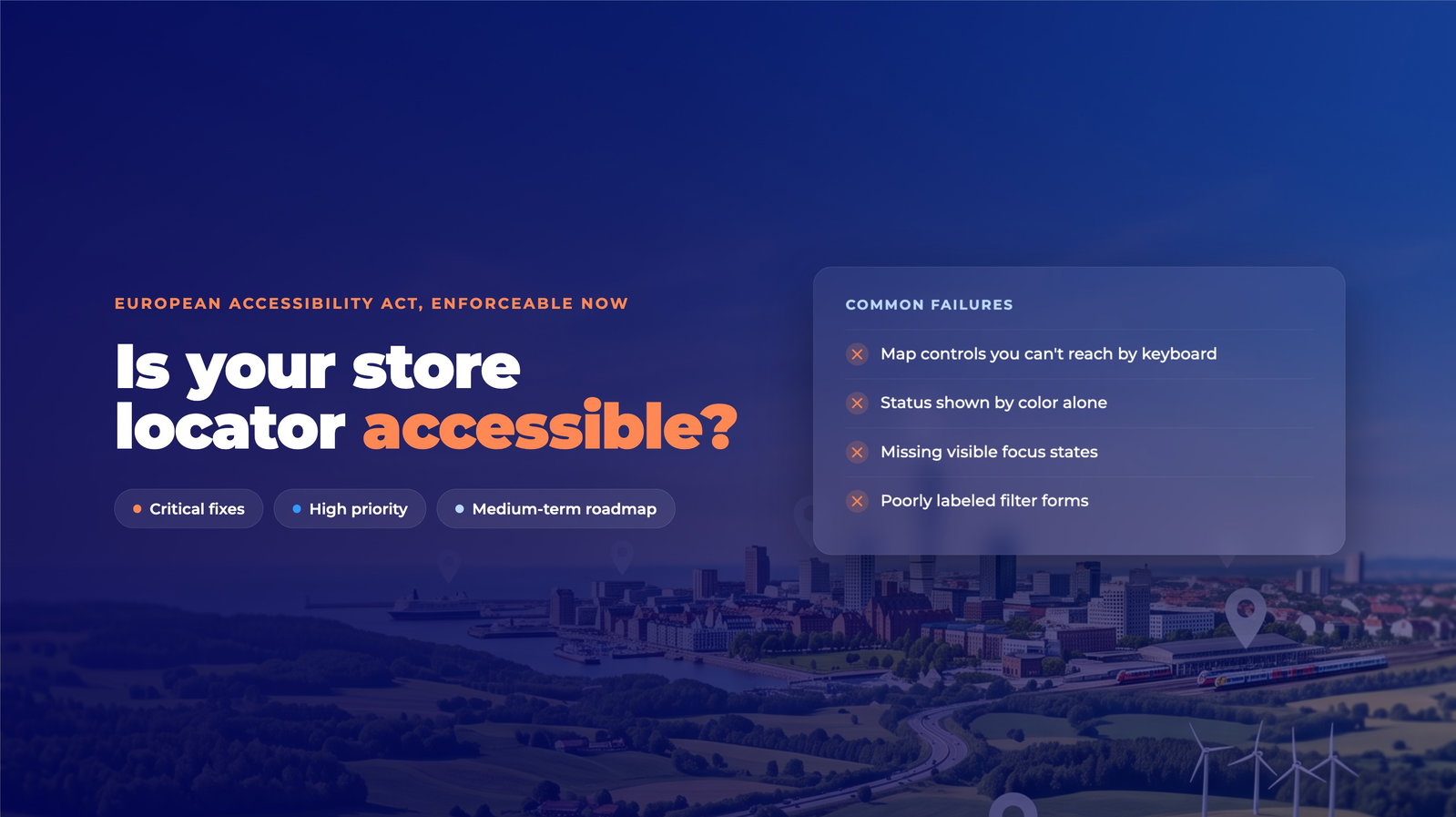
- The European Accessibility Act became enforceable in June 2025. Enforcement is already active across multiple EU member states.
- EAA requires WCAG 2.2 Level AA compliance. Most multi-location brands have not yet audited their store locators against this standard.
- Common failures: inaccessible map keyboard controls, color-only status indicators, missing focus states, and poorly labeled form filters.
- This checklist gives you a prioritized starting point: critical fixes, high-priority items, and a medium-term roadmap.
Your brand operates 150 locations across Europe. You’ve invested in a store locator, optimized your listings, and you’re seeing strong organic traffic. Then you receive a formal notice from your national disability rights authority: your store locator fails to meet accessibility standards.
This is not a hypothetical. It is happening now.
The European Accessibility Act (EAA) became enforceable in June 2025, and national authorities across the EU have been conducting audits, issuing notices, and in some cases levying fines. France, Germany, Spain, and the Netherlands have all begun active enforcement, with disability rights organizations filing formal complaints against major retail and transport brands.
Yet most multi-location brands have not audited their store locators for WCAG 2.2 AA compliance, which is the standard the EAA requires.
This article explains what EAA compliance actually means for your store locator and gives you a practical audit checklist to get started.
The European Accessibility Act: Timeline and Current Enforcement
The EAA is a directive that requires all digital products and services sold or operated in EU markets to meet minimum accessibility standards. It covers:
- Websites and mobile apps (including store locators and local landing pages)
- Self-service terminals (kiosks, ATMs)
- E-commerce platforms
- Mobile applications with essential functionality
The core requirement: digital services must meet WCAG 2.2 Level AA standards, the international benchmark for web accessibility.
Enforcement timeline
- December 2016: EAA directive published
- June 28, 2025: Enforcement deadline: all covered digital services must comply
- 2025 to present: National authorities conducting audits, issuing compliance notices, and implementing penalties
Enforcement is already active. France’s disability rights organizations have filed complaints against major retail chains for store locators that failed accessibility tests. German regulators are investigating app accessibility across sectors. Spain required brands to conduct accessibility audits by early 2026, a deadline that has now passed. Portugal and the Netherlands are auditing e-commerce and location-based platforms.
Penalties vary by member state, but the consequences are real. Non-compliance can result in:
- Fines up to €25,000 per violation in some jurisdictions
- Mandatory remediation orders with strict timelines
- Reputational damage and exclusion from public procurement
- Accessibility lawsuits, which are increasing in Europe
What WCAG 2.2 AA Actually Requires for Store Locators
WCAG 2.2 is built on four principles: perceivable, operable, understandable, and robust (POUR). Here is what each means in practice for a store locator.
Perceivable: Users Must Be Able to Sense Your Content
What this means for store locators:
- Text alternatives for images: Every map icon, store image, or visual element must have alt text that a screen reader can interpret.
- Color contrast: Text must meet a 4.5:1 contrast ratio against its background (WCAG requirement), and 3:1 for large text (18pt+).
- Video and multimedia: If your store locator includes video content, it must include captions and audio descriptions.
- Error and status indicators: These must not rely on color alone. Use text, icons, or other visual cues alongside color.
Common failure: A map pin is colored red to indicate “open now.” A color-blind user cannot distinguish it from other pins. Fix: add a visible label (“Open now”) or a secondary icon alongside the color.
Operable: Users Must Be Able to Navigate and Control
What this means for store locators:
- Keyboard navigation: Every interactive element (buttons, filters, map controls, search boxes) must be accessible via Tab, Enter, and arrow keys. No mouse required.
- Skip links: Users must be able to skip repetitive header navigation to jump directly to the store locator’s search field.
- Focus indicators: When a user tabs to a button or input field, it must be visually clear which element has focus.
- Touch target size: On mobile, clickable elements must be at least 24×24 pixels with adequate spacing.
- No keyboard traps: A user should never be stuck inside an interactive element with no keyboard escape.
Common failure: A map interface supports mouse zoom and pan but keyboard users cannot zoom. Fix: add + and - keyboard shortcuts for zoom and arrow keys for pan, and document them in help text.
Understandable: Users Must Understand Your Content
What this means for store locators:
- Plain language: Avoid jargon. “Narrow your search” is clearer than “refine your location query.”
- Consistent navigation: If filters appear in a sidebar on desktop, they must remain consistently accessible on mobile.
- Labeled form fields: Every search field and filter must have a visible, associated label. Required fields must be clearly marked.
- Error messages: When a user enters an invalid zip code, show an explanatory message (“Please enter a valid 5-digit zip code”), not just a red border.
Common failure: A filter labeled “Service Types” with no explanation of what options are available. Fix: use “Filter by services (parking, wheelchair access, WiFi)” and ensure all options are listed.
Robust: Your Store Locator Must Work with Assistive Technology
What this means for store locators:
- Semantic HTML: Use proper HTML elements. Buttons should be
<button>, not<div onclick>. This is what allows screen readers to understand page structure. - ARIA labels: Where visual context is insufficient, use ARIA attributes to describe interactive elements. A filter button that expands a panel needs
aria-expanded="true"so screen readers report its state. - Form associations: Input fields must be programmatically linked to their labels.
- Live regions: When your locator dynamically loads new results (after a search), screen readers must be notified via
aria-live.
Common failure: A “Load More” button dynamically loads additional stores, but screen readers are not notified. A visually impaired user does not realize new results have appeared. Fix: use aria-live="polite" on the results container.
Common Store Locator Accessibility Failures
Based on EAA enforcement activity in the past year, here are the most frequent issues found in store locators:
1. Map Interactions Are Keyboard-Inaccessible
Mouse users can click, drag, and scroll to navigate a map. Keyboard users often cannot. This is the most commonly cited failure in EAA audits.
Fix:
- Add keyboard shortcuts: + and - for zoom, arrow keys for pan
- Add visible zoom buttons so both keyboard and mouse users can control the map
- Document shortcuts in accessible help text
Test: Unplug your mouse and try navigating the entire locator with Tab and arrow keys alone.
2. Map Pins Lack Text Alternatives
Color-coded pins are a universal store locator pattern and a common failure point. Color-blind users and screen reader users cannot interpret color-only status.
Fix:
- Add text labels to each pin state (“Open now,” “Closed,” “Featured”)
- Use icons alongside color cues
- Provide alt text for every map-related image
Test: Apply a grayscale filter to your store locator. Can you still understand the map?
3. Search Filters Lack Clear Labels
Unlabeled filters are both a usability and compliance problem.
Fix:
- Use descriptive labels: “Filter by services” instead of “Service Types”
- List available options in the label or help text
- Properly associate labels with form controls in HTML:
<label for="service-filter">Filter by services (parking, wheelchair access, WiFi)</label>
<select id="service-filter">
  <option>Parking</option>
  <option>Wheelchair access</option>
  <option>WiFi</option>
</select>
4. Missing or Insufficient Focus Indicators
When a keyboard user tabs to a button, there must be a visible change indicating focus. Removing the browser default without a replacement is a WCAG failure.
Fix:
:focus { outline: 3px solid #0066cc; }Ensure your focus indicator meets a 4.5:1 contrast ratio.
5. Mobile Store Details Behind Inaccessible Navigation
A desktop store locator can pass accessibility testing while the mobile version fails completely. Details hidden behind a hamburger menu with no keyboard path is a common mobile failure.
Fix:
- Ensure all controls meet the 24×24 pixel minimum touch target size
- Test keyboard navigation on mobile with a connected Bluetooth keyboard
- Make store details reachable without complex gesture sequences
6. Error Messages Use Color Alone
A red border on a form field is not sufficient. Color-blind users miss it entirely, and screen readers are not notified.
Fix:
- Add error text: “Please enter a valid zip code (5 digits)”
- Use
aria-live="assertive"to announce errors immediately - Use color alongside text, never color alone
7. Store Hours as Images
Store hours displayed as graphics (a JPG or PNG of a schedule) cannot be read by screen readers and cannot be searched or copied.
Fix:
- Use HTML text for all hours
- Use semantic time elements where possible:
<time>10:00</time>–<time>18:00</time>
Your EAA Store Locator Audit Checklist
Use this checklist to audit your store locator against WCAG 2.2 AA. Prioritize in this order: critical fixes first, high-priority within 30 days, medium-priority in your next quarter roadmap.
Critical: Fix Immediately
- Keyboard navigation: Can you navigate the entire store locator using only Tab, Shift+Tab, Enter, and arrow keys?
- Focus indicators: When tabbing to interactive elements, is there a clear visual indicator (outline, background change, underline)?
- Semantic HTML: Are buttons marked as
<button>, links as<a>, and form inputs properly labeled? - Color contrast: Do all text and interactive elements meet a 4.5:1 contrast ratio (3:1 for large text)?
- Form labels: Does every input field have a visible, associated
<label>tag? - Alt text for images: Do store images, icons, and maps have descriptive alt text?
- Error messages: When the form has an error, is it communicated with text, not just color?
High: Fix Within 30 Days
- Touch targets on mobile: Are clickable elements at least 24×24 pixels with adequate spacing?
- Map accessibility: Can keyboard users zoom and pan? Do map pins have text labels?
- Live region updates: If results load dynamically, are screen readers notified of new content?
- Consistent navigation: Does the store locator layout remain consistent across desktop, tablet, and mobile?
- ARIA labels: Do complex interactive elements have ARIA attributes where needed (
aria-expanded,aria-label, etc.)? - Skip links: Can users skip past repetitive navigation to jump directly to the store locator?
Medium: Roadmap for Next Quarter
- Captions for video: If you have store tours or video content, are captions provided?
- Page language: Is the page’s primary language declared in HTML (
<html lang="en">)? - Heading structure: Are headings used in logical order (H1, H2, H3) to create a readable document outline?
- Form validation: Does the form provide real-time, accessible validation feedback?
Testing Your Store Locator
Automated Testing (First Pass)
These free tools catch roughly 30–40% of accessibility issues. Use them as a starting point, not a final answer.
- WAVE Browser Extension: Color-codes errors, contrast problems, and missing alt text inline on the page
- Lighthouse (Chrome DevTools): Includes an accessibility audit with prioritized recommendations
- Axe DevTools: Comprehensive checker with detailed remediation guidance
Automated tools cannot test whether keyboard navigation is intuitive or whether color blindness affects usability in context. Manual testing is required.
Manual Testing (Required)
- Keyboard-only test: Unplug your mouse. Can you complete a full store search using only your keyboard? Where do you get stuck?
- Screen reader test: Use NVDA (Windows, free) or VoiceOver (Mac, built-in) and navigate the locator. Is store information announced clearly?
- Mobile keyboard test: Connect a Bluetooth keyboard to a mobile device. Can you navigate accessibly?
- Color blindness test: Use a simulator like Coblis to view your store locator. Can you still distinguish map pins and status indicators?
- Zoom test: Zoom your browser to 200%. Does the layout hold? Are buttons still reachable?
Professional Audit (Recommended Before Regulatory Filing)
For enterprise compliance documentation, a certified auditor will:
- Test with real assistive technology and real users with disabilities
- Provide detailed, prioritized remediation recommendations
- Produce compliance documentation for regulatory purposes
- Conduct follow-up testing after fixes are applied
Audits typically cost €2,000–€5,000 and provide legal protection that automated tools cannot.
EAA Compliance and Local Landing Pages
The EAA does not apply only to store locators. It covers the full digital journey, including local landing pages and location-specific web content. Every page that describes a physical location’s services, hours, or contact details must meet the same WCAG 2.2 AA standard as your store locator.
This matters for multi-location brands managing hundreds of location pages. The same audit checklist applies: contrast ratios, keyboard navigation, form labels, and semantic HTML. If your local listing management workflow generates location pages automatically, accessibility compliance needs to be built into the template, not added page by page.
GDPR established a similar pattern: many EU brands were unprepared for enforcement and faced compliance orders. EAA enforcement is following the same trajectory. The brands auditing now will have documentation ready when regulators come calling. The brands that wait will be responding reactively.
EAA compliance is also consistent with GDPR-compliant local SEO practices more broadly: both frameworks require brands to treat digital infrastructure as something that serves all users, not just the majority.
Accessibility as Competitive Advantage
EAA compliance is not just a legal checkbox. Accessible store locators perform better on standard marketing metrics. They have lower bounce rates, higher completion rates on store search tasks, and better mobile performance.
The reason is structural. Accessibility requirements force clean HTML, logical document structure, clear labeling, and keyboard-navigable interfaces. These are also the conditions that produce faster load times, better crawlability, and higher quality scores in local search. The local business schema markup that underpins your local SEO performs better on pages with clean semantic structure, for exactly the same reasons.
Brands that build for accessibility reach a broader audience, including the 15–20% of users with some form of disability and the growing segment of elderly users who rely on accessible interfaces. They also reduce legal and regulatory exposure in a market where enforcement is increasing year on year.
The real question is not whether to comply, but how fast. If you are evaluating a store locator tool or redesigning your existing one, make WCAG 2.2 AA a hard requirement before signing any vendor contract.
PinMeTo’s location pages are built with accessibility standards at their core, so multi-location brands managing their presence through PinMeTo start from a compliant foundation rather than retrofitting one later.
Sources
- European Accessibility Act Directive 2019/882. Official EUR-Lex legal text
- WCAG 2.2 Guidelines. World Wide Web Consortium accessibility standards
- Web Accessibility Initiative (WAI). W3C’s accessibility resource center
- Understanding WCAG 2.2: Keyboard. Detailed guidance on keyboard accessibility requirements
- Understanding WCAG 2.2: Contrast Minimum. Color contrast requirements and rationale
- WAVE Accessibility Checker. Free browser extension for accessibility auditing
- Lighthouse Accessibility Audit. Chrome DevTools accessibility testing
- Coblis Color Blindness Simulator. Visual testing tool for color blindness
- ARIA Authoring Practices Guide. W3C guidance on ARIA for accessible interfaces

Recommended Articles

How to Create Local Content That AI Search Engines Actually Cite
Optimize local content for AI search engines. Learn what makes AI cite your pages, plus a practical content audit framework for multi-location brands.
Marcus Olsson
Local SEO Ranking Factors 2026: A Practical Guide for Multi-Location Brands
A 2026 guide to local SEO ranking factors: Google's relevance, distance, and prominence, plus AI Overviews, review recency, and multi-platform strategy.
Astghik Nikoghosyan
How to Respond to Google Reviews at Scale Without Sounding Like a Robot
Manage review responses across dozens of locations without losing authenticity. Templates, timing, and a workflow for enterprise-scale review management.
Daniel MelkerssonFrequently Asked Questions
Is EAA compliance only for EU-based brands?
What's the difference between WCAG 2.2 Level A, AA, and AAA?
If I use a third-party store locator tool, am I responsible for compliance?
Can I just add an Accessibility Statement and avoid fixing things?
How long does it take to achieve full WCAG 2.2 AA compliance?
Subscribe to Our Newsletter
Get local SEO tips, product updates, and marketing insights for multi-location brands delivered to your inbox.
Ready to boost your local visibility?
See how PinMeTo helps multi-location brands manage listings, reviews, and local SEO at scale.
Book a Demo