7 Tips on how to use Facebook for your retail chain
Originally published
- Multi-Location
- Social Media
- How-to Guides
- Industry
Facebook is a powerful advertising platform. It helps you engage with existing customers and reach new customers in ways that weren’t possible before. It has become the ultimate social marketing platform. But you are most likely not taking full advantage of the platform’s potential. We’ve listed 7 tips to be more professional and reach more people.
7 Facebook tips for retail chains
Facebook has built a Business Manager for businesses like yours. It’s great for many reasons. You can easily manage your business, your locations, the people working in the team, ad accounts and more. The Business Manager lets you add people without having to add them as friends first and you can add/remove people as roles change. It makes your company the owner of the business on Facebook, not an individual Social Media Manager.
ProTip #2 - Set Up Locations
Set up Facebook Location Pages for each of your stores under your main brand page. This creates a network of local pages that customers can find, check in to, and follow for local updates.
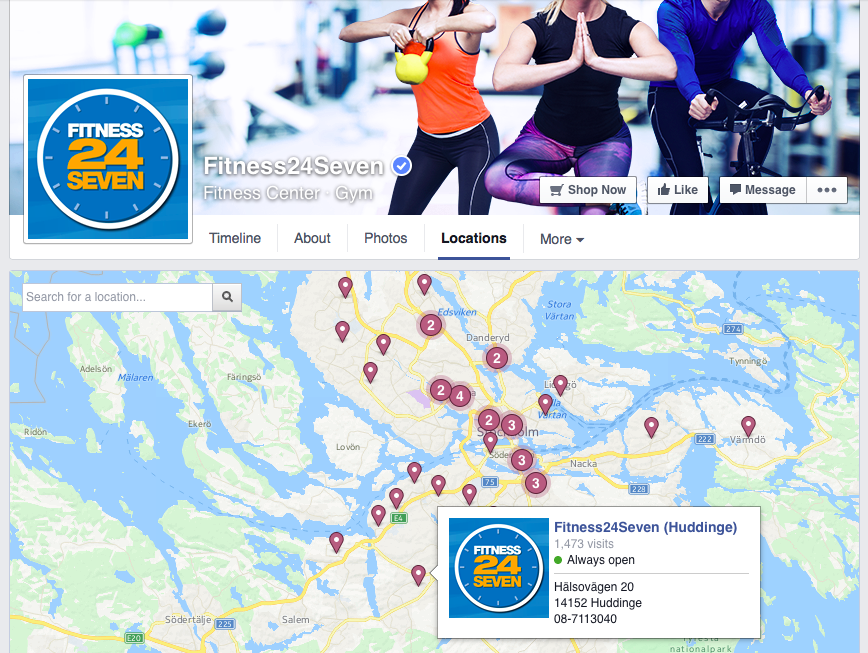
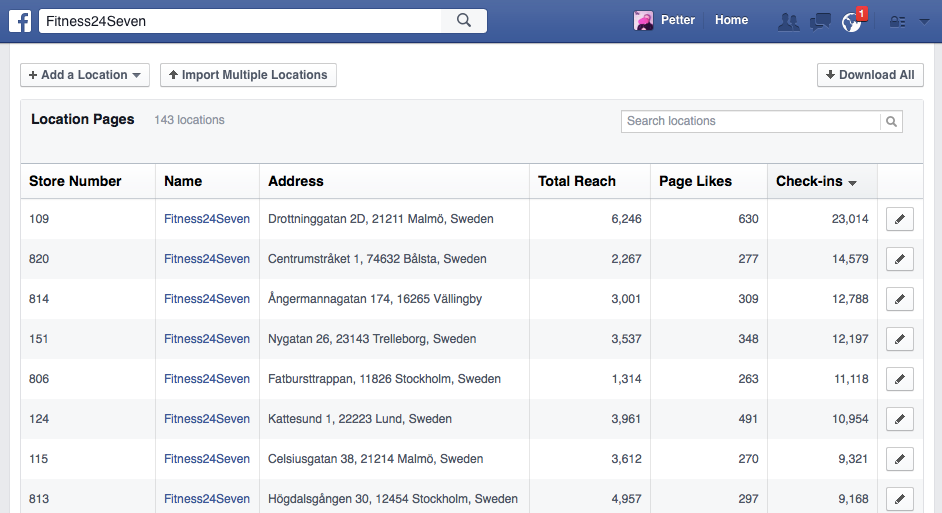
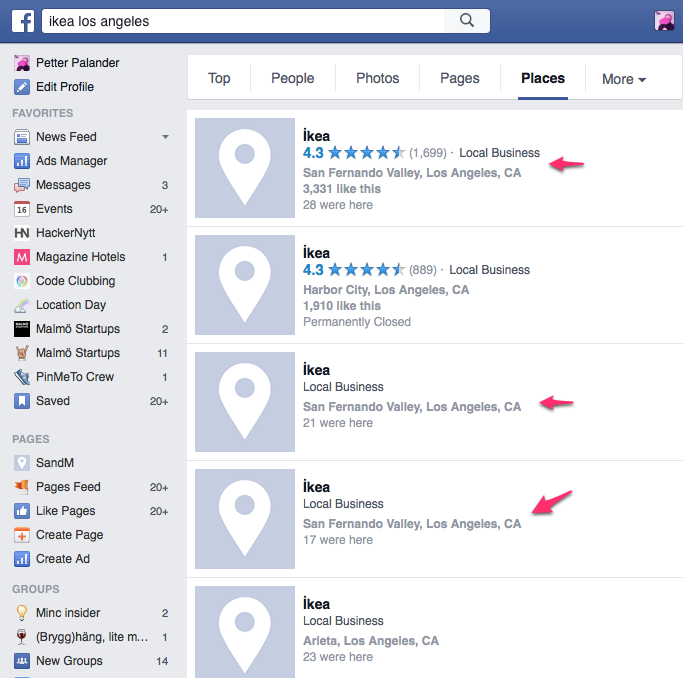
It’s likely your locations already exist on Facebook even if you haven’t created them. Anyone on Facebook can create new Facebook location pages when they want to check-in or tag a photo to the place they are. If you haven’t set up a location page the likelihood that someone has created a new one is very high. And even if you have set it up, some people create new pages either because they don’t find the official page or because they want to add their own flavor. Try to keep it clean and remove the unofficial pages as the information there is often misleading or insufficient.
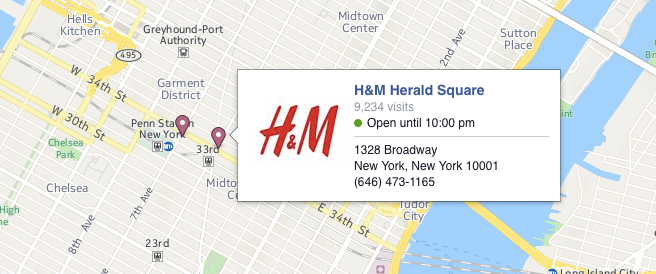
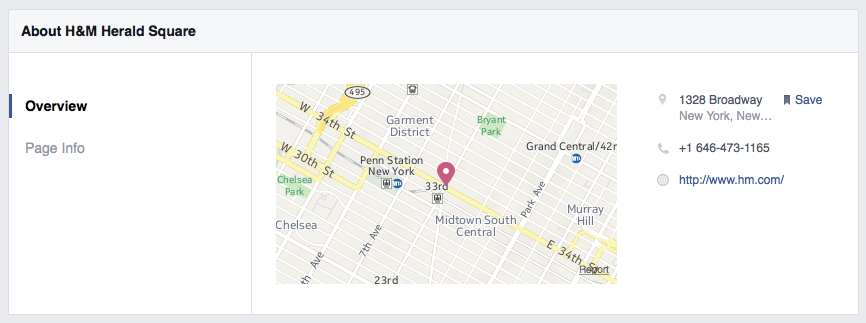
ProTip #4 - Add Address, Phone Number, Opening Hours and Website
What information is most important to you when you’re looking at a local business website on your mobile?
- 47% say map & driving directions
- 37% say a phone number
ProTip #5 - Add Profile + Header Photo
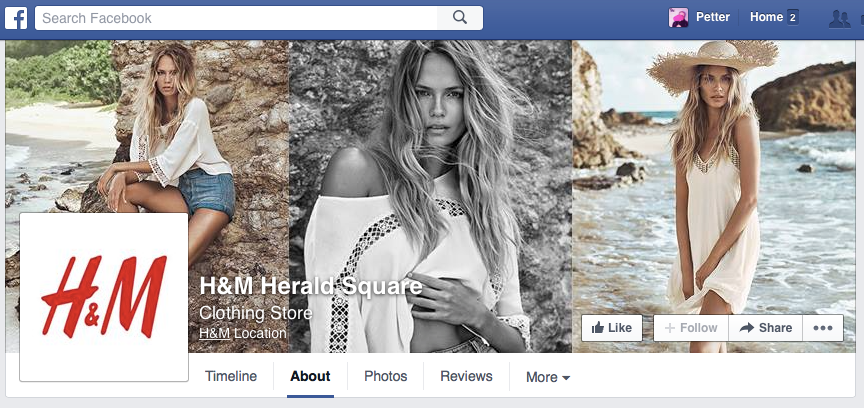
Use consistent branding across all your location pages by uploading the same profile photo (usually your logo) and a location-specific or seasonal header photo. Visual consistency builds trust and makes your locations instantly recognisable.
ProTip #6 - Start a conversation
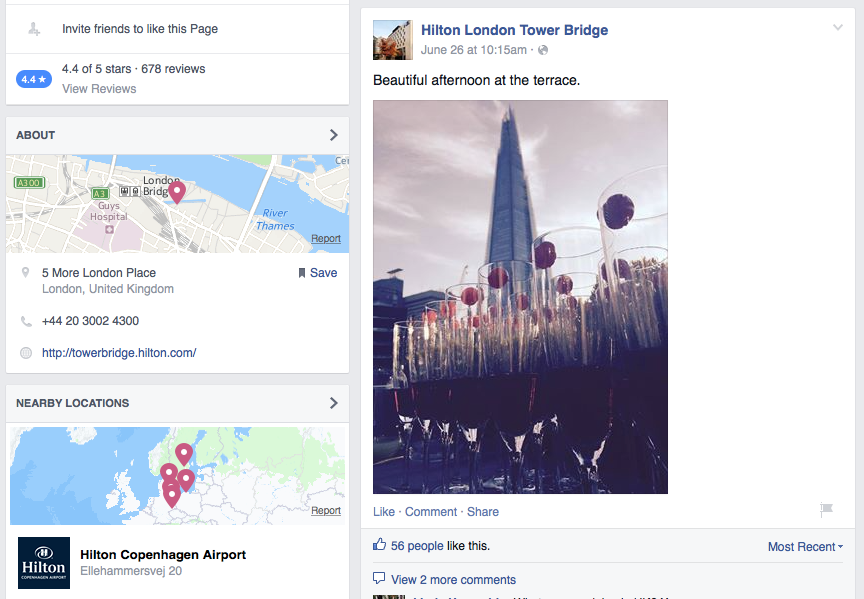
Post locally relevant content to your location pages to spark engagement. Seasonal promotions, local events, or even a simple welcome message can get conversations started with your nearby audience.
ProTip #7 - Interact With Your Fans
Reply to comments, reviews, and messages on your location pages promptly. Customers who feel heard are far more likely to return and recommend your stores to others.
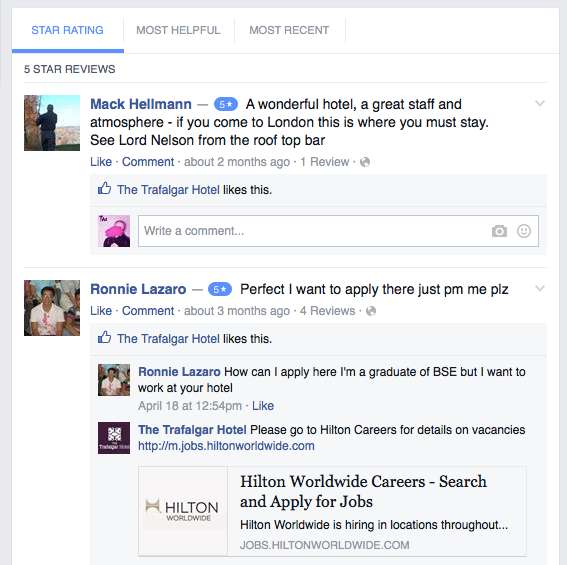
Make It Easy With PinMeTo
PinMeTo lets you publish content, manage reviews, and maintain accurate business information across all your Facebook location pages from one platform. Learn more about our local social media management solution.
Recommended Articles
How to Optimize Instagram for Google Search
Optimize Instagram for local discovery to boost your brand's visibility and drive foot traffic with location tags, UGC, and consistent local presence.
Lily Adamyan
A Guide to Multi-Location Customer Engagement
Explore strategies for multi-location brands to manage online communication, from social media engagement to effective review management.
Lily Adamyan
How to Add Social Media Links to Google Business Profile
Optimise your Google Business Profile now by adding social media links! Enhance brand visibility and user interaction across multiple locations...
Lily AdamyanFrequently Asked Questions
How do I set up Facebook for a retail chain with multiple stores?
What are Facebook Location Pages and why do they matter for businesses?
How can I manage Facebook posts across all my store locations at once?
Subscribe to Our Newsletter
Get local SEO tips, product updates, and marketing insights for multi-location brands delivered to your inbox.
Ready to boost your local visibility?
See how PinMeTo helps multi-location brands manage listings, reviews, and local SEO at scale.
Book a Demo